
Download Chrome App Launcher – Free, Secure Chrome Extension for Easy App Access
Overview
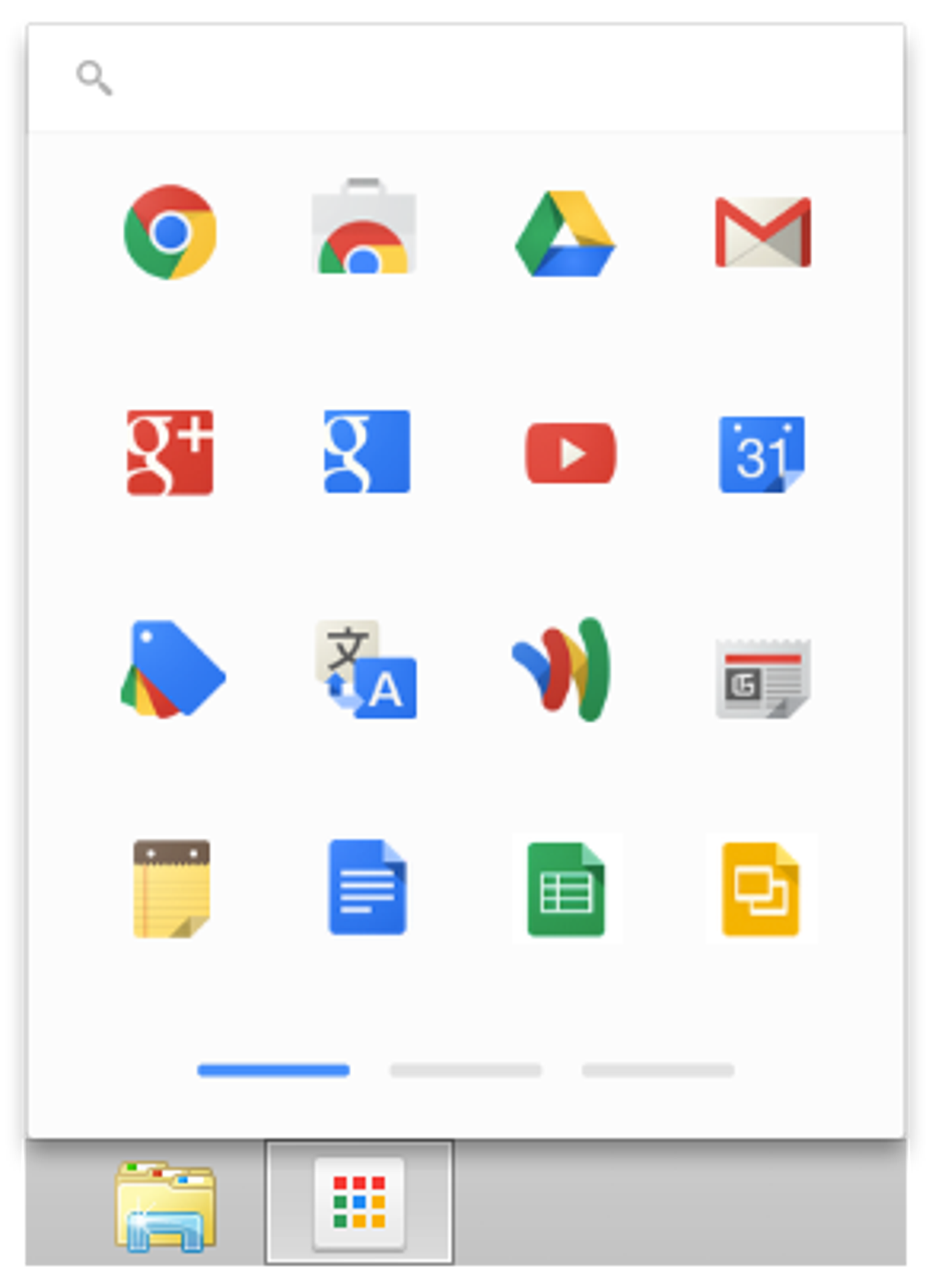
Chrome App Launcher is a free add‑on designed specifically for Google Chrome users who want a streamlined way to reach a wide variety of web‑based applications. By integrating directly into the Chrome toolbar, the launcher provides a single, visually organized hub where you can browse, launch, and manage dozens of apps without leaving your browser. The interface is built around intuitive categories such as Productivity, Entertainment, Education, and Utilities, making it simple to locate the right tool at a glance.
Moreover, the launcher learns from your usage patterns and offers personalized suggestions, so the apps you love appear front‑and‑center each time you open Chrome. While the extension is completely free, it respects your privacy and runs securely within Chrome’s sandboxed environment, ensuring that your data stays protected. Whether you are a student juggling online study tools, a professional switching between project‑management dashboards, or a casual user who enjoys streaming services, Chrome App Launcher consolidates your digital workflow into one tidy, customizable pane.
Core Features & Customisation Options
- Category‑Based Navigation: Apps are grouped by logical categories, allowing you to filter instantly by type (e.g., “Productivity”, “Games”, “News”).
- Smart Recommendations: The launcher analyses your most‑used apps and surfaces them on the home view, reducing the time spent searching.
- Resizable Tiles: Users can adjust the size of each app icon—small, medium, or large—depending on screen real estate and personal preference.
- Custom Layouts: Drag‑and‑drop functionality lets you rearrange tiles to create a bespoke dashboard that mirrors your workflow.
- One‑Click Launch: A single click opens the selected web app in a new Chrome tab, preserving your current browsing session.
- Offline Cache: Frequently accessed apps are cached locally, enabling faster launch times even on slower connections.
- Secure Permissions: The extension requests only the minimal permissions needed to read your bookmarks and display icons, adhering to Chrome’s security standards.
- Free Updates: Automatic updates delivered through the Chrome Web Store ensure you always have the latest features and security patches without manual intervention.
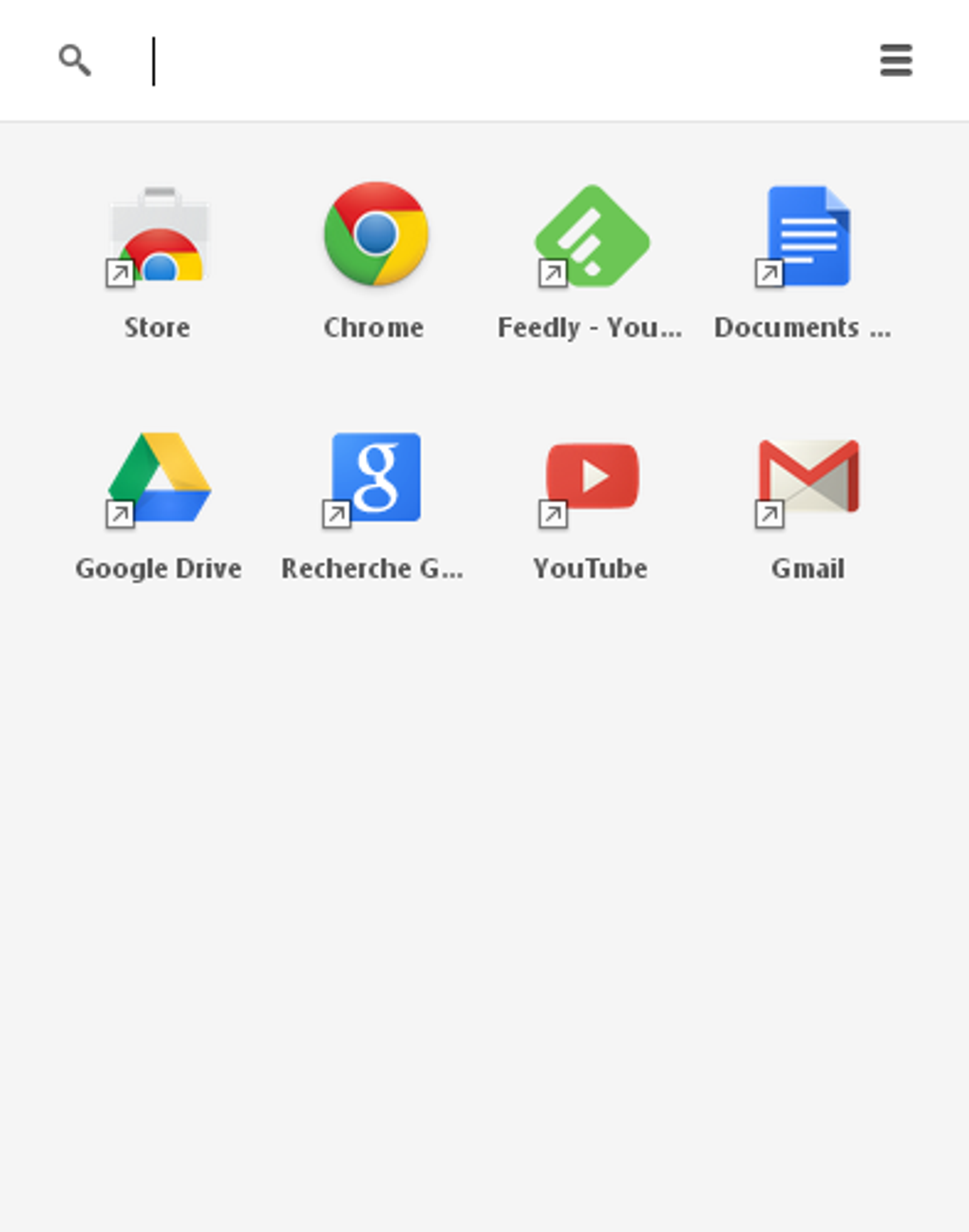
The design philosophy behind Chrome App Launcher focuses on clarity and speed. By default, the launcher presents a clean grid of app tiles, each accompanied by a recognizable icon and short label. If you prefer a more compact view, you can switch to a list mode that shows just the names, freeing up valuable screen space on smaller monitors.
For power users, the settings panel includes advanced options such as “Hide rarely used apps,” “Show notifications badge,” and “Sync layout across devices” when you are signed into Chrome. These customisation choices make the launcher adaptable for a broad audience—from casual browsers who only need a couple of shortcuts, to developers who maintain a long list of testing environments and SaaS tools. Because the launcher lives as a Chrome extension, there is no separate installation process, and it integrates seamlessly with existing Chrome extensions, avoiding conflicts or performance degradation.
Installation, Setup & Daily Use
Getting started with Chrome App Launcher is intentionally straightforward. Follow these steps to have the extension up and running in under five minutes:
- Open Google Chrome and navigate to the Chrome Web Store.
- Search for “Chrome App Launcher” or click the direct link provided by the developer.
- Click the Add to Chrome button. A pop‑up will ask for confirmation and display the permissions required.
- Press Add extension. Chrome will download and install the launcher automatically.
- Once installed, you’ll see a new icon (a grid of squares) appear to the right of the address bar. Click it to open the launcher panel.
The first launch presents a brief onboarding wizard that walks you through the basic settings. You can choose to import apps from your existing Chrome bookmarks, manually add URLs, or let the launcher scan the Chrome Web Store for popular applications. During this phase, you’ll also be prompted to select your preferred tile size and default layout. After the wizard, the launcher saves your preferences to Chrome’s local storage, meaning the configuration persists across browser restarts.
Day‑to‑day usage is as simple as clicking the launcher icon, finding the desired app tile, and selecting it. Because the launcher updates its recommendation engine in real time, you’ll notice that the apps you open most often gradually rise to the top of the grid. If you need to remove an app from the view, simply hover over the tile, click the small “X” that appears, and confirm the removal. Note that removal only hides the tile; the underlying web app remains accessible via its original URL, ensuring you don’t lose access unintentionally. For users who manage many apps, the built‑in search bar filters results instantly, supporting both keyword and tag searches.
To keep the launcher performing optimally, it’s advisable to review the “Cache Management” option in the settings every few weeks. This clears out stale data from apps you no longer use, freeing up memory and speeding up launch times. Additionally, because Chrome App Launcher receives automatic updates, you’ll benefit from new features—such as dark mode support or integration with Google Workspace—without manual downloads.
Compatibility, Pros & Cons
Chrome App Launcher works on any operating system that supports the Google Chrome browser, including Windows 10/11, macOS Catalina and later, Linux distributions with Chrome, as well as Chrome OS devices. Since the extension runs inside the browser, there are no separate system requirements beyond a recent version of Chrome (version 89 or newer is recommended). Mobile versions of Chrome (Android and iOS) do not currently support extensions, so the launcher is limited to desktop environments.
Pros
- Completely free with regular security updates.
- Intuitive, category‑based interface reduces time spent searching for apps.
- Highly customisable tile size and layout to suit any screen size.
- Smart recommendation engine learns from usage patterns.
- Lightweight – consumes minimal RAM and CPU resources.
- Seamless integration with existing Chrome extensions and bookmarks.
Cons
- Apps cannot be permanently deleted from the launcher; they can only be hidden.
- No native support for mobile Chrome browsers.
- Relies on an internet connection for most features; offline mode is limited to cached apps.
- Custom themes (e.g., dark mode) are only available in newer versions.
- Advanced users may find the built‑in search less powerful than external launchers.
Overall, Chrome App Launcher scores a solid 4 out of 5 stars. Its ease of use, free price point, and thoughtful customisation make it a valuable addition to any Chrome‑centric workflow. The inability to fully delete apps is a minor drawback, but the benefits far outweigh this limitation for most users.
Frequently Asked Questions
-
Can I sync my Chrome App Launcher layout across multiple devices?
Yes. When you sign into Chrome with the same Google account on multiple computers, the launcher syncs your layout, tile sizes, and preferences via Chrome’s built‑in sync feature.
-
Is the Chrome App Launcher safe to use with sensitive work data?
The extension operates within Chrome’s sandbox and requests only minimal permissions. It does not store any personal data on external servers, making it safe for corporate environments when combined with standard Chrome security policies.
-
How do I remove an app that I no longer need?
Hover over the app tile, click the small “X” that appears, and confirm the removal. The app will be hidden from the launcher but remains accessible via its original URL if you need it later.
-
Does the launcher work on Chrome on Linux?
Yes. The extension is fully compatible with Chrome on popular Linux distributions such as Ubuntu, Fedora, and Debian, provided you are running a recent version of Chrome.
-
Can I customize the launcher’s appearance with my own icons?
While the default set of icons is auto‑generated from the app’s favicon, you can upload custom icons for any added URL via the “Edit Tile” option in the settings menu.
Conclusion & Call to Action
Chrome App Launcher delivers a fast, free, and secure way to centralise the multitude of web apps you rely on daily. Its intuitive categorisation, smart suggestions, and flexible layout options make it a compelling productivity booster for anyone who spends the majority of their digital time inside Google Chrome. Although the extension does not yet support mobile browsers and cannot permanently delete apps, these limitations are minor compared with the overall value it provides. If you’re ready to declutter your Chrome toolbar and access your favourite tools with a single click, simply head to the Chrome Web Store, add the extension, and start customising your personalized app hub today.







